Mobile app
AI-School is also available as a mobile app. The app is optimized for use on tablets, phones, and small laptops, making it easier to open and use AI-School across different devices.
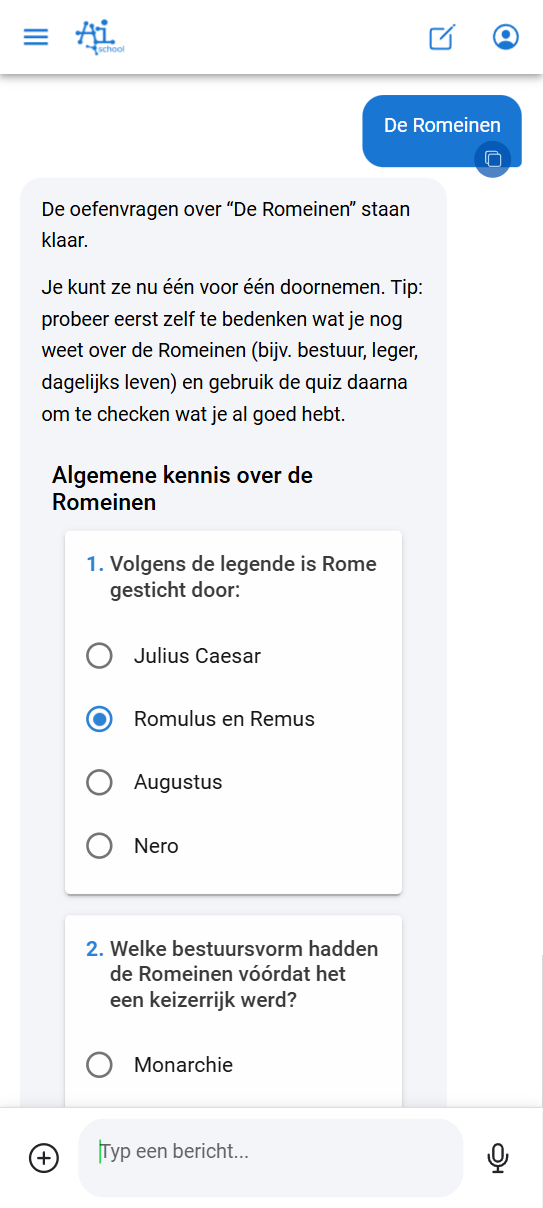
Two versions of AI-School
AI-School is available in two versions:
| Feature | Standard app | Mobile app |
|---|---|---|
| URL | ai-school-pro.web.app | ai-school-mobiel.web.app |
| Features | All features including the admin section | Core functionality without the admin section |
| Interface | Full interface for mouse and large screens | Optimized for touch and small screens |
| Target audience | Desktop and laptop users | Tablet and mobile users |
Benefits of the mobile app
The mobile app offers the same core functionality as the web version, but in an interface that is better suited to smaller screens and touch controls:
- Opening conversations is faster and clearer
- Asking questions is optimized for touch input
- Uploading documents works seamlessly on mobile devices
- Processing files and audio works the same way as in the standard app
- Working with AI on assignments or ideas feels more intuitive
- Asking questions about AI-School also works in the mobile chat; the AI can use the manual in the background to provide explanations
Who is the mobile app for?
Students
For students, the app is especially useful:
- On tablets in class (depending on school agreements)
- At home on tablet or phone
- On the go, for example on the train or bus
Teachers
The mobile app can also be practical for teachers:
- Checking or preparing something while on the go
- Continuing work without a laptop
- Quickly asking the AI a question
- Recording audio and having it automatically processed for transcription
Files and transcription on mobile
Files you upload in the mobile app are automatically registered and processed. Images are immediately ready for use. Documents and audio files first receive a processing status; once processing is complete, the content can be used in chat conversations and assistants.
For transcription, the mobile app can automatically upload audio chunks while recording. About every minute, an audio chunk is processed in the background, so you can see progress in between and a long recording is better protected against loss due to an interrupted connection or empty battery. When you stop recording, the full final recording is also processed. The interim chunks remain linked to the transcription but do not clutter the normal file management.
Add to home screen
After logging in to the mobile app, you will receive instructions to add the app to your home screen. This lets you open AI-School directly as a normal app, without first needing to open a browser.
By adding AI-School to your home screen, you get:
- Your own icon on your home screen
- Faster access without a browser
- An app-like experience
Video tutorial
Watch the video below for a step-by-step explanation of how the mobile app works:
Which version should I use?
- Use the standard app if you are at a computer or laptop and need access to all features, including admin functions
- Use the mobile app if you are using a tablet or phone and want an optimized experience for touch controls
Recording in the Android app
The Android recording screen follows the app language and theme colors and has a top bar and bottom tabs. The recording is first stored locally. With Save, the back button, or another tab, you stop the recording and save it on the device without starting processing; you can resume later. With Stop recording, you choose processing with or without speaker recognition.
Native AI-School apps
In addition to the mobile web app, there are separate native apps for iPhone/iPad and Android. You can now install the iPhone and iPad app as a test version via TestFlight; see iPhone and iPad app. Install the Android app via Google Play; see Android app. Availability in TestFlight or the app store is separate from the web release. The explanation on adding to the home screen on this page applies to the mobile web app.
- AI-School in Google Play for Android phones, tablets, and Chromebooks; see Android app
App Store: Coming soon.
In the native app, Chat and Transcription are the main sections. Under More you will find, among other things, assistants, files, account, and preferences. Attachments show thumbnails where available. During a transcription recording, you cannot start a second microphone recording via dictation or voice chat.
A recording can continue if you lock the screen or switch to another app. System interruptions and insufficient storage can interrupt this. Check the recording after an interruption. If processing fails, the local audio remains available: try again and do not delete the app as long as you still need the recording.
Plaud recorder
- Open Transcription and choose the Plaud recorder option if it is available in your app.
- Grant Bluetooth permission, keep the recorder nearby, and select the found device. If another phone is still connected, let it disconnect first.
- After that, the recorder stays paired. The app will automatically retrieve and transcribe new recordings, even when the app is in the background. Recordings that were already on the recorder when you paired it can be selected manually from the list.
- If a transcription succeeds, the app asks whether the recording may be deleted from the recorder. If you choose Delete from recorder, this happens as soon as the recorder is connected.
Plaud here serves as the recording device; you do not use a Plaud transcription or Plaud AI subscription for this processing. As long as the recorder is paired with AI-School, the Plaud app or another phone cannot use it. The app separately reports when the recorder is linked to another account or is not recognized by Plaud. Use Unpair to remove the pairing before using the device with another account.